How to Set Up Google Business Profile for Your Daycare (Step-by-Step)
Complete walkthrough for setting up and optimizing your daycare's Google Business Profile. Get found on Google Maps and attract more local families.
How to Set Up Google Business Profile for Your Daycare (Step-by-Step)
If you run a daycare, you know that your reputation and visibility are everything. Parents are constantly searching for safe, nurturing environments for their children, and where do they look first? Almost always on their phones, using Google.
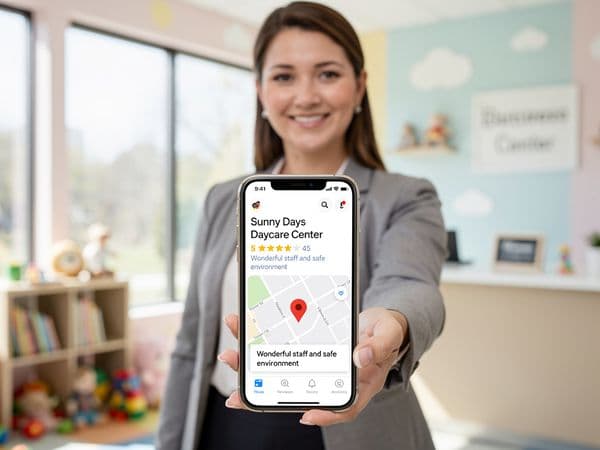
Having a beautiful website is important, but if families cannot find you on Google Maps, you might as well not exist. This is where your Google Business Profile (formerly known as Google My Business) comes in. It is the digital storefront of your childcare center. A well-optimized profile can be the difference between having empty cribs and a full enrollment waitlist.
In this guide, we will walk you through exactly how to set up and optimize your daycare’s Google Business Profile. We will keep it simple, step-by-step, and tailored specifically for daycare owners who want results without getting lost in technical jargon.
Why Your Daycare Needs a Google Business Profile
Before we dive into the technical setup, it is crucial to understand the impact this tool has on your enrollment numbers. The statistics surrounding local search are compelling.
Research shows that 46% of all Google searches are local. When a parent types "daycare near me" or "childcare in [Your City]," Google prioritizes local businesses that have verified profiles. Furthermore, 76% of people who search for something nearby on their smartphone visit a related business within 24 hours.
For a daycare, this means that when a parent has a sudden need for care, they are likely to find the centers closest to them immediately. If your profile is missing or incomplete, you are handing those families to your competitors.
The Benefits of a Verified Profile
* Increased Visibility: Appear in the "Local Pack" (the map view at the top of search results). * Trust Building: Parents see photos, hours, and real reviews before calling you. * Direct Communication: Parents can call, message, or get directions directly from the search result. * Cost-Effective: Setting up and maintaining a Google Business Profile is completely free. You do not need to pay Google to have a listing.Step 1: Claim or Create Your Listing
The first step is determining if you already have a listing. Sometimes, if your business is well-known locally, Google may have already created a "ghost" listing for you based on data from other sources.
- Visit the Platform: Go to google.com/business.
- Sign In: Use a dedicated Google account (Gmail) for your business. Do not use a personal account that might be lost if you change employees.
- Search for Your Business: Enter your daycare name and address.
Verification: The Most Important Step
You cannot edit your profile until you verify ownership. Google offers a few methods, but for most daycares, this involves a postcard verification.* Postcard Method: Google mails a card with a 5-digit code to your physical address. This usually takes 5 to 14 days. * Phone/Email: Some businesses qualify for instant verification via phone or email, but this is rare for new listings. * Video Verification: You may be asked to record a video showing your signage, equipment, and access points to prove you operate there.
Tip: While waiting for the postcard, ensure your business is open and the mail is being checked daily. If you miss the code, you may have to request another one.
Step 2: Complete Every Field (Detailed Walkthrough)
Once verified, you gain access to the dashboard. Many owners leave fields blank, but Google rewards completeness. A fully filled-out profile is more likely to rank higher. Here is how to tackle each section.
Business Name and Category
* Name: Use your legal business name exactly as it appears on your sign and license. Do not add keywords like "Best Daycare" unless it is part of your actual legal name. This can get you penalized. * Primary Category: This is the most critical SEO field. Select "Day Care Center" or "Child Care Agency." Be specific. If you offer specialized services like "Preschool," you can add that as a secondary category.Service Area and Address
* Address: Since daycares usually have a physical location parents visit, do not hide your address. Set the location to your physical center. * Service Area: If you offer pickup services or travel to families, you can define a service area. However, for a standard center, rely on the physical address for local SEO accuracy.Hours of Operation
Parents need to know exactly when they can drop off. Be precise. * Standard Hours: Monday through Friday, 7:00 AM to 6:00 PM. * Special Hours: Google allows you to set "Special Opening Hours" for holidays. Update these before Thanksgiving, Christmas, and summer breaks to avoid frustrated parents showing up on closed days.Contact Information
* Phone Number: Use a direct line or a dedicated business line. * Website: Link to your main homepage. If you have a specific landing page for enrollment, link to that instead. * Attributes: Check every box that applies. For daycares, important attributes include: * Women-owned * LGBTQ+ friendly * Wheelchair accessible * Free Wi-Fi * On-site playground| Field | Example Entry | Why It Matters | | :--- | :--- | :--- | | Business Name | Little Sprouts Learning Center | Matches your license for trust | | Primary Category | Day Care Center | Tells Google what you do | | Hours | Mon-Fri: 6:30 AM - 6:00 PM | Prevents missed calls | | Phone | (555) 123-4567 | Allows instant contact | | Website | www.littlesprouts.com | Drives traffic to enrollment forms |
Step 3: Add Photos (What Kinds, How Many, Best Practices)
Visuals are the primary reason parents click on your listing over another. A profile with no photos looks inactive and untrustworthy.
How Many Photos?
Aim for at least 20 high-quality photos to start. Upload new photos monthly to show the profile is active.What to Photograph
- Exterior: Show the front of the building so parents can find you easily. Ensure your sign is visible.
- Classrooms: Show clean, colorful, and well-organized learning spaces.
- Playgrounds: Parents want to see outdoor play areas.
- Staff: A photo of your team smiling creates a sense of community.
- Meals: If you provide food, show healthy meal options.
Important Safety and Privacy Note
Never photograph children without explicit, written parental consent. It is a liability risk. Focus on empty classrooms, play equipment, food, and staff members. If you do feature a child, ensure their face is not clearly visible or use a photo with prior written release forms on file.Uploading Best Practices
* Resolution: Use clear, bright images. Blurry photos suggest a messy facility. * File Size: Keep them under 5MB for easy uploading. * Captions: Add descriptions to your photos when uploading. Instead of "Room 1," name it "Toddler Room with Sensory Wall."Step 4: Collect and Respond to Reviews
Reviews are the currency of local trust. Parents read them to gauge safety and quality.
How to Ask for Reviews
Do not be shy about asking happy parents. * Timing: Ask when a parent has shared good news (e.g., their child started speaking their first word at school). * Method: Send a direct link via email or text. You can generate this link in your Google Business Profile dashboard under "Get more reviews." * Script: "We loved having [Child's Name] in our program this year! If you have a moment, would you mind sharing your experience on Google? It helps other families find us."Responding to Reviews
You must respond to every review, both positive and negative. * Positive Reviews: Thank the parent by name and mention something specific. * Negative Reviews: Stay professional. Do not argue. Acknowledge their concern and offer to take the conversation offline.| Review Type | Response Template | | :--- | :--- | | 5-Star Positive | "Thank you so much, Sarah! We loved seeing Emma thrive in our program. It was a joy watching her learn to share with her friends!" | | 1-Star Negative | "Hello [Name], we are sorry to hear about your experience. We take all feedback seriously. Please call our director at [Phone Number] so we can resolve this for you." |
Warning: Never reveal private details about a child or family in a public response, even if the parent started it.
Step 5: Post Updates and Offers
Google Business Profile includes a "Posts" feature, similar to social media. These posts appear on your listing and show up in search results.
What to Post
* Enrollment Open: Announce when new spots are available. * Events: Share photos from your Fall Festival, Science Week, or Graduation. * Offers: Some daycares offer a discount on registration fees. For example, "Register by June 1st for $100 off tuition." * News: Share articles about child development or safety tips.Frequency
Post at least once a week. Google favors active profiles. You can schedule posts in advance or update them quickly from your mobile phone.Call to Action
Every post should have a button. Use "Sign Up" to link to your enrollment form, or "Call Now" to connect parents directly to your office.Common Mistakes to Avoid
Even with the best intentions, many daycare owners make simple errors that hurt their search ranking.
- Inconsistent Information: Ensure your Name, Address, and Phone Number (NAP) are identical on your website, your Google Profile, and social media. If your website says "Little Sprouts" and Google says "Little Sprouts Daycare," it confuses the algorithm.
- Ignoring Questions: Parents can ask questions directly on your profile. Answer them promptly. If you leave them unanswered, it signals poor customer service.
- Using Stock Photos: Do not use generic stock images of children. Parents want to see your facility. Stock photos can hurt credibility.
- Keyword Stuffing: Do not add keywords to your business name (e.g., "Little Sprouts - Best Daycare in Austin"). This violates Google's policies and can lead to suspension.
- Hiding Your Address: If parents must visit you to enroll, do not mark your business as "Service Area Only" (like a plumber). You must show your physical location to rank for local searches.
How to Track Performance
Once your profile is live, you need to know if it is working. Google provides free analytics called "Insights."
Key Metrics to Watch
* Search Views: How many times your profile appeared in search results. * Map Views: How many times your profile appeared on Google Maps. * Customer Actions: * Website Clicks: How many people went to your website. * Calls: How many people called you directly from the listing. * Direction Requests: How many people asked for directions to your center.If you see a spike in "Direction Requests," it means your SEO is working and families are coming to tour. If "Calls" are low but "Views" are high, consider updating your phone number or adding a "Call Now" button to your posts.
Check your Insights once a month. If you notice a drop in views, try posting a new update or uploading fresh photos to signal to Google that your business is active.
Daycare Google Business Profile Checklist
Use this checklist to ensure you have completed every step of the setup process.
- [ ] Create or Claim your Google Business Profile account.
- [ ] Verify ownership via Postcard or Video.
- [ ] Enter your exact Legal Business Name.
- [ ] Select "Day Care Center" as your Primary Category.
- [ ] Set accurate Opening and Holiday Hours.
- [ ] Add your Business Phone Number and Website URL.
- [ ] Check all relevant Attributes (Wheelchair accessible, etc.).
- [ ] Upload at least 15 high-quality photos (Exterior, Interior, Staff).
- [ ] Generate and share your Review Link with current parents.
- [ ] Post an update announcing your enrollment availability.
- [ ] Respond to all new reviews within 48 hours.
- [ ] Review Insights dashboard monthly.
Conclusion
Setting up your Google Business Profile is one of the highest-ROI tasks you can do for your daycare. It is free, it takes less than an afternoon to set up, and it puts your center directly in front of parents who are ready to enroll. By following the steps above, you ensure that your profile is accurate, trustworthy, and optimized for local search.
Remember, SEO is not a one-time task. Keep your photos fresh, respond to every review, and update your posts weekly. Over time, your consistent effort will pay off with more tours, more calls, and more enrolled children.
Ready to take your local search presence to the next level? Read our full local SEO guide for comprehensive strategies on dominating your local market.
Ready to Transform Your Daycare Website?
Get a free sample homepage designed specifically for your daycare. No upfront cost, no pressure.
Get Your Free Sample